1. Getting started with Spinrun
Choose a useful first job
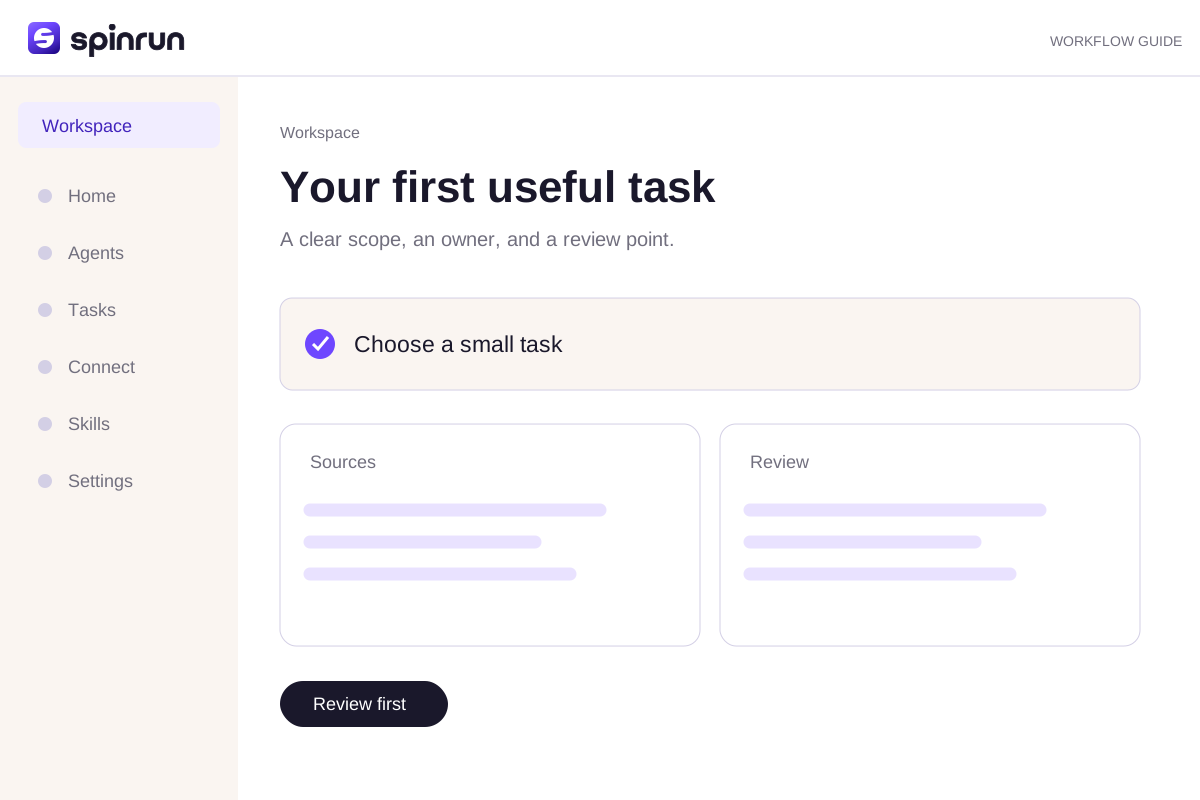
Start with a task you already understand: a weekly update, a small research brief, or an exception list. Have the source material ready and decide who will review the result. A clear first job makes it easier to notice a missing connection or an ambiguous instruction.
Create or join a workspace
Open the signup page and use the sign-in options shown there. An invitation joins the workspace named in the invite; it does not create a second copy of that team's data. Use the account menu to check the active workspace before connecting an account or starting work.
Connect only what the task needs
Open Integrations and connect the source system for this task. Check the account name, scope, and access rules. Start with one or two connections rather than granting access to every tool at once. Ask a workspace administrator if a required connection is restricted.
2. Talk to Spinrun
Give context where you work
Spinrun can work from its web chat and supported team channels. Keep a follow-up in the same task when it changes an existing result. Start a separate task when the goal and source material are different.
Describe the result
A useful request names an output the reviewer can recognize: a three-section update, a spreadsheet of unmatched invoices, or a research brief with dated sources. Include the intended reader and where the result should be delivered.
Name the boundaries
Say which systems and date ranges to use. Explain which changes require your review and what should happen if a source cannot be read. Instructions never grant access that the underlying workspace or connection does not allow.
3. Approvals
What an approval covers
An approval describes a proposed tool action in a workspace. It is tied to the action and context being reviewed. Read the destination, account, and arguments, rather than approving only because the surrounding task sounds familiar.
Approve or reject
Use the pending action's decision controls. Approving permits that proposed action to proceed; rejecting keeps it from proceeding and gives you a chance to explain the change. A rejected action is not a failed connection.
Permission still applies
The server checks both the tool's classification and its configured mode. A request in chat cannot widen a connection's access. Only change standing permission rules when the workspace administrator understands the consequences.
Try a brief you can review
Use these approved notes to draft a short team update. Link factual claims to their sources. List assumptions and questions. Stop before external changes.Try the hands-on practice to check your instruction before using it in a real workspace.
Review before repeating
Inspect the draft and confirm its sources. Correct one specific part of the process when the result falls short. Save a reliable instruction as a skill and assign a teammate to maintain it.